
G-103 · Guides
How civil engineering firms coordinate sheets across multiple disciplines
Define the sheet boundaries once and let every discipline inherit them. In SheetAgent for Civil 3D a control drawing holds the tiling; the demolition, existing conditions, grading, erosion control and layout drawings are created from it with viewports located and sized, numbered straight through and enrolled in one sheet set. Move a tile and every discipline follows.
Why discipline sets drift apart
On a land development or site project, the same ground is drawn several times: existing conditions, demolition, grading, erosion control, layout. Reviewers expect sheet C2-04 and sheet C3-04 to show the same piece of the site, at the same scale, with the same match lines. When each discipline's sheets are set up separately, that agreement depends on people repeating the same work exactly, in several files, every time the design changes.
It breaks in predictable places. A boundary moves in one discipline and not the next. Numbering restarts at one in each drawing. Match lines at a file boundary point to a sheet that has been renumbered. A key map still highlights last month's tile.
The usual approach, and what it costs
Without a tool, the common method is to draw the sheet rectangles once and Xref that drawing into each discipline, where they act as a guide. It keeps the outlines in one place, but someone still locates and sizes every viewport by hand in every discipline, and every time a rectangle moves, that work is done again in each file.
One tiling, authored once
Project Control works at project scale instead of one drawing at a time. You author the tiling once in a control drawing, as you would in any drawing: set the title block, the viewport area, preview the tiles and add any extras. The control drawing is preview only; sheets are never built in it.
Every discipline inherits the tiling from it. The discipline drawings are created from that one definition, each arriving complete: viewports located and sized, match lines, key maps where they are defined, scale bar, north arrow, title block attributes and its place in the sheet set. In a discipline drawing, the controls that would re-cut the tiling point back to the control drawing. Everything else on those sheets is yours, and project updates never touch what you added.
Disciplines, prefixes and numbering
Assign Disciplines gives the project its names and numbers.
- Set how many sheets go in each file, or leave it blank to keep each discipline in one file. The count is by sheet, so a sheet with two viewports still counts as one.
- Set the suffix start once for the project: 01 gives C1-01, 101 gives C1-101.
- Add a row per discipline: its name, a sheet title and a unique prefix such as C1, C2 or C3. The Will number column previews the result as you type.
- Apply. The tiles show their project numbers, and each file group takes its own colour.
Then Build Set or Update: tick the disciplines, point at a sheet set or create one, choose the file naming for the drawings and the index, set the backup location, and build. Building one discipline first and reviewing it is worth the extra minute.
Files, regions and sectors
A heavy discipline can be split across files at a count you choose. Project Control sets no minimum or maximum of its own; the right number is whatever your design files and machines carry comfortably.
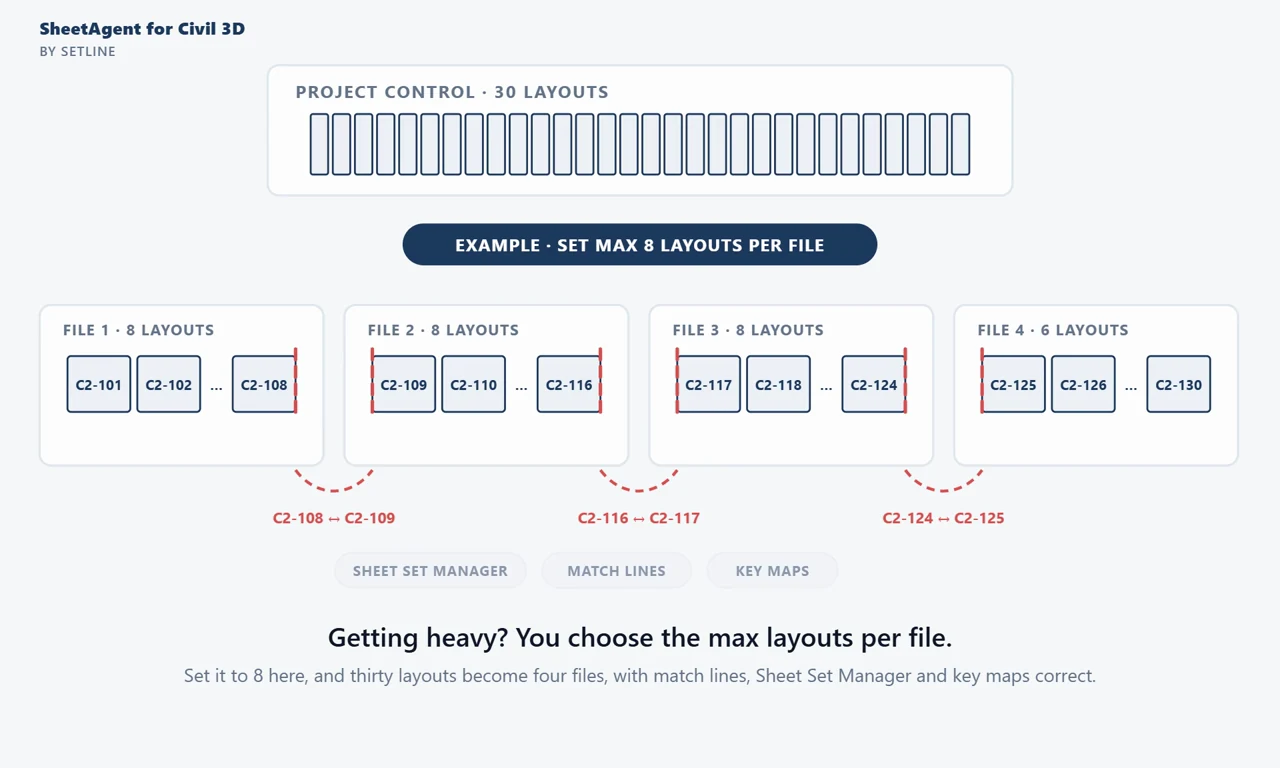
A worked example. One discipline, prefix C2, suffix start 101, has thirty sheets along a corridor. Set the maximum to eight sheets per file in Assign Disciplines, and Build Set or Update produces four drawings:
| Drawing | Sheets | Count | Match lines at the file boundary |
|---|---|---|---|
| File 1 | C2-101 to C2-108 | 8 | C2-108 reads SEE C2-109 |
| File 2 | C2-109 to C2-116 | 8 | C2-109 reads SEE C2-108; C2-116 reads SEE C2-117 |
| File 3 | C2-117 to C2-124 | 8 | C2-117 reads SEE C2-116; C2-124 reads SEE C2-125 |
| File 4 | C2-125 to C2-130 | 6 | C2-125 reads SEE C2-124 |
The numbering runs straight through rather than restarting at 101 in each file, every drawing enrols in the same sheet set, and the key maps and page count fields stay correct across all four.
Large projects break up geographically first. Define Regions adds each region from a closed polyline, a drawn rectangle, or one region per alignment, and files break by region before they break by count. A sector large enough on its own can still be split across several drawings, and the project stays one numbering sequence and one sheet set however many sectors, files and sheets it ends up with.
Match lines, key maps and the sheet set across files
| Element | Across a multi-file project |
|---|---|
| Match lines | A sheet at a file boundary references the sheet on the other side, so it can read SEE C2-109 when that sheet lives in the next drawing |
| Numbering | Runs straight through the files and sectors; page counts such as 1 of 30 stay correct |
| Key maps | Set up once in the control drawing, for every discipline including ones added later: each drawing highlights its own zone, or the key map shows the whole project. Large projects get one per sector plus one for the whole project |
| Sheet Set Manager | One sheet set for the project; every discipline enrols in it, and Sync SSM keeps it matched across every file |
| Index | Always a standalone drawing, with its own file name pattern, sheet name and suffix |
When the tiling changes
Every project change starts in the control drawing. Retile, move or delete tiles, or retype a sheet number there. Run Assign Disciplines if the numbering needs re-approving, then Build Set or Update, and every discipline follows; the table reports where every file stands.
Two rules keep a project stable through change. Sheets renumber but files never rename, so file names and the links into them stay put. A deleted sheet is removed rather than left as a numbered gap, and a drawing that loses all its sheets moves to the backup folder rather than being deleted. Drawings are backed up before they are updated, and an existing backup is never overwritten.
On plan and profile projects, a tiling change also means the split profile views no longer line up with the sheets. Profile Split Sync Required says so, and Assign to SheetAgent re-cuts the splits in the source drawing and finishes the sync.
Layers across a whole discipline
Layer control follows the discipline rather than the file. Set the layers inside one viewport in any drawing of the discipline, press Apply Layers Viewport, Keymaps or Profile, and choose across the discipline: every drawing in that family is updated offline, without being opened. Company layer standards apply to everything SheetAgent for Civil 3D generates, in every discipline, and Health flags layers that have drifted from them.
When the drawings already exist
Key Plans is the route for discipline drawings you already have. It reads a set of existing drawings and builds one index or cover layout across them, with key maps coordinated across the project. It does not author tiles or create drawings. The test for which to use: if the sectors touch and match lines run between them, Project Control is the better tool; if they do not adjoin, Key Plans is enough.
The full workflow, button by button, is in One set of sheets for every discipline and Project Control.
Questions
How do we keep sheet boundaries the same across every discipline drawing?
Author the tiling once and have every discipline inherit it rather than copying it into each file. In SheetAgent for Civil 3D, Project Control keeps one control drawing as the authority: every discipline drawing is created from it, so a boundary that moves in the control drawing moves in every discipline.
Can each discipline keep its own sheet number prefix?
Yes. Assign Disciplines takes a row per discipline with its own unique prefix, such as C1, C2 or C3, and previews the numbers as you type. A reused prefix is flagged and the build stays disabled until it is fixed, so two disciplines cannot collide in the numbering.
Can match lines carry across separate drawing files?
Yes. When a discipline is split across files, the sheet at the file boundary still references the sheet on the other side, so an edge sheet can read SEE C2-109 even though that sheet lives in the next drawing.
How do we number sheets continuously when a discipline spans several drawings?
Numbering runs project-wide rather than per file, so a discipline split across drawings numbers straight through instead of restarting at one in each. Page count fields such as 1 of 30 stay correct as sheets are added or removed, and the same holds across sectors.
What if a project has plan sheets and plan and profile sheets?
Use one control drawing for each. A control drawing is Single VP or Multi VP, so plan sheets sit under one and plan and profile sheets under the other. Point both at the same sheet set and the project stays connected in Sheet Set Manager.
Do we have to open every drawing to update it?
No. Build Set or Update creates and updates the discipline drawings in one offline pass, without opening and closing each one, and backs each drawing up before it changes it. Layer settings pushed across a discipline are applied the same way.