
Section 02 20 00Resources › Division 02 Sheets
Match lines
Yes. SheetAgent for Civil 3D draws match lines at Build Sheets wherever two sheets meet, each labelled with the neighbouring sheet, and regenerates them when the tiles, the alignment or the sheet numbers change. Where they land is yours to set, snapped to round stations along an alignment or left where the tile coverage puts them. How they read is yours too: text, prefix, background mask, or not drawn at all if you would rather place them yourself.
Are match lines generated and updated automatically?
Yes, both. They are generated at Build Sheets, one wherever two sheets meet, with a label that names the neighbouring sheet. In path and alignment placement the label also carries the station, read from the polyline or the alignment and clamped to its limits, so no label reads past the end of the alignment.
When the alignment moves, Health flags the drift per alignment. Press Update Tiles, then Update Sheets: the layouts, match lines and key maps update in one pass, and tiles that did not change are skipped.
When the sheet count changes, because a tile was added to fill a gap, the set was retiled or a sheet was deleted, Update Sheets regenerates the affected layouts and Update Match Lines regenerates every label and neighbour reference from the current tile layout. After a renumber, run Update Match Lines again in alignment and path modes, because those labels carry station ranges.
What stays yours: where they land, snapped to Every 5 or Every 25 ft (Every 10 m or 50 m in metric) or left where coverage puts them; how they read, with text height, text style, prefix, minimum gap and a background mask; whether they run to the viewport edge, which they do by default in every mode, or stop where the sheets overlap; and whether to draw them at all. Choose not to, and SheetAgent for Civil 3D leaves whatever you draw alone.
On a Project Control project split across drawing files, the sheet at a file boundary still references the sheet on the other side, so an edge sheet can read SEE C2-109 even when that sheet lives in the next drawing.
This is where it differs from Civil 3D's own Plan Production. There, each view frame group manages the view frames and match lines for one alignment, and Autodesk's help states that view frame groups are not dynamically associated with the sheet files created from them: updating the group, moving a match line or moving a view frame will not affect the sheets. Here the tiles drive the sheets, so a match line is never the thing you fix by hand after a change.
What match lines are
Match lines are drawn automatically at Build Sheets wherever two sheets meet, each labelled with the neighbouring sheet reference.
Path and alignment placement always use model space match lines, and the labels carry station references read from the polyline path or from the Civil 3D alignment. Station values are clamped to the alignment limits, so a label never reads past the ends of the alignment.
Array and free placement offer a choice at build time: model space or paper space.
After tiles move or sheets are renumbered, press Update Match Lines to regenerate the labels and the neighbour references.
Match Line Style controls how the labels look and whether they are drawn at all. Match Line Location controls where they land along an alignment.
Where the match lines land
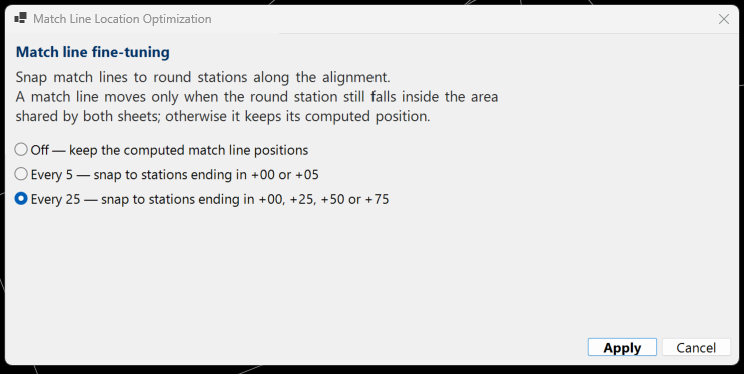
By default each match line sits where the tile coverage puts it. Snapping them to round stations instead is usually what a drafting standard wants, and there are two places to set it.
At preview. In the setup dialog, below the station range, is a Match line fine-tuning section. Set the snap there, before you press OK.
Afterwards. Press Match Line Location in the Add-ons section, to refine what you chose or to set it if you skipped it at preview.
The options are the same either way. Off keeps the computed positions. Working in feet, Every 5 snaps to stations ending in +00 or +05, and Every 25 to stations ending in +00, +25, +50 or +75. Working in metric, Every 10 m and Every 50 m snap to multiples of those.
A match line only moves when the snapped station is one both sheets share. Where it is not, that match line keeps its computed position rather than pulling the sheets out of line.
Match line style, masks, and turning them off
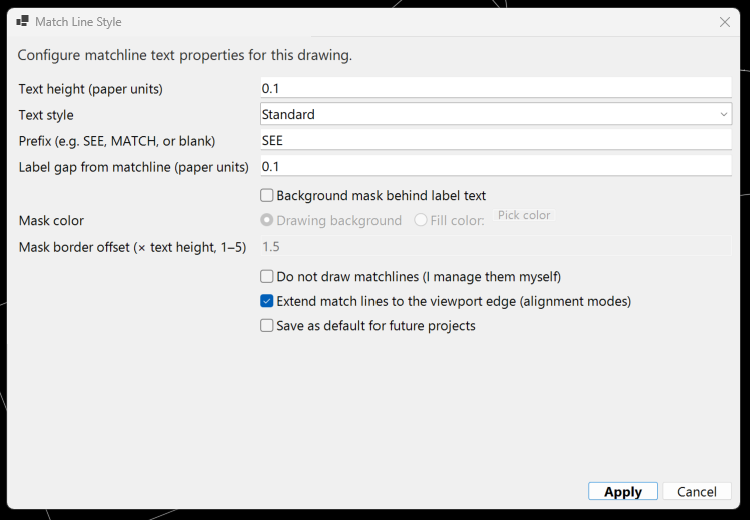
Match line labels take their look from one style setting, applied across the whole set.
Step 1. Press Match Line Style in the Add-ons section, on the Single VP or Multi VP tab.
Step 2. Set the label text height, text style, prefix and minimum gap. The prefix is whatever your standard uses, SEE or MATCH or anything else.
Step 3. Turn on a background mask behind the label text if it needs to read over linework. The mask can take the drawing background or a fill colour you pick, and how far it extends past the text is set as a multiple of the text height.
Step 4. Match lines run to the viewport edge by default, in every placement mode. Untick Extend match lines to the viewport edge if your standard wants them trimmed where the sheets overlap. The label stays centred on the overlap either way.
Step 5. Press Apply, then Update Match Lines, or Update Sheets, to push the style to every sheet.
Would you rather draw them yourself? The same dialog carries an option not to draw match lines at all, and it leaves whatever you draw alone.
Save as default for future projects keeps these settings for the next one.
When match lines update
Step 1. Press Update Match Lines in the add-ons section. The match lines are regenerated on every sheet from the current tile layout, along with the labels and the references to neighbouring sheets.
Step 2. If other things changed at the same time, Update Sheets covers the same ground: it refreshes layouts, match lines and neighbour labels in one pass.
In alignment and path modes the labels carry station ranges, so run this again after renumbering.
If the editing buttons are greyed out with a message that the match line trim is active, untrim first.
Trimming viewports at the match line
This is a Multi VP tool. It is not on the Single VP tab, where there is no per-viewport trim step.
Step 1. On the Multi VP tab, add-ons section, press VP Trim at Matchline. The viewports are clipped to the match line so adjacent sheets meet cleanly.
Step 2. While the trim is active the edit and build buttons lock on purpose, and the button itself reads VP Untrim Matchline.
Step 3. Press VP Untrim Matchline to restore each viewport to its exact pre-trim size and unlock the buttons.
Do not erase the trim clip polylines by hand. Use the button.
End of section 02 20 00
Something here not matching what you see? Tell us and we will fix it. Back to Resources, or the FAQ.